Interface
Change documented
Back to overview
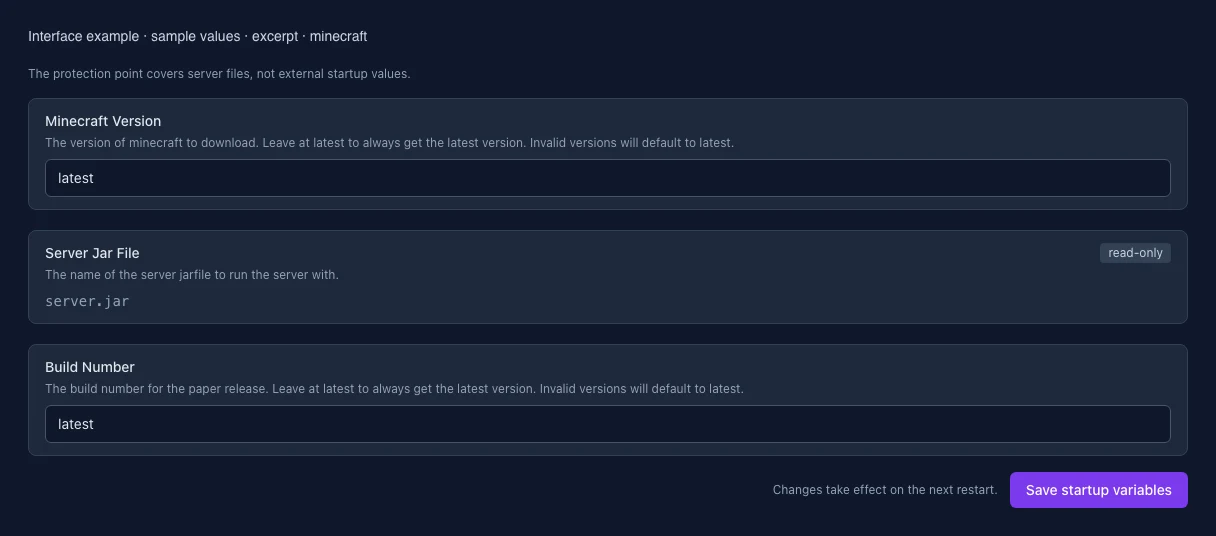
Excerpt of the current interface with sample values. Values and prerequisites illustrate the controls; available tools depend on server software, plugins and permissions. · Captured on 2026-10-08
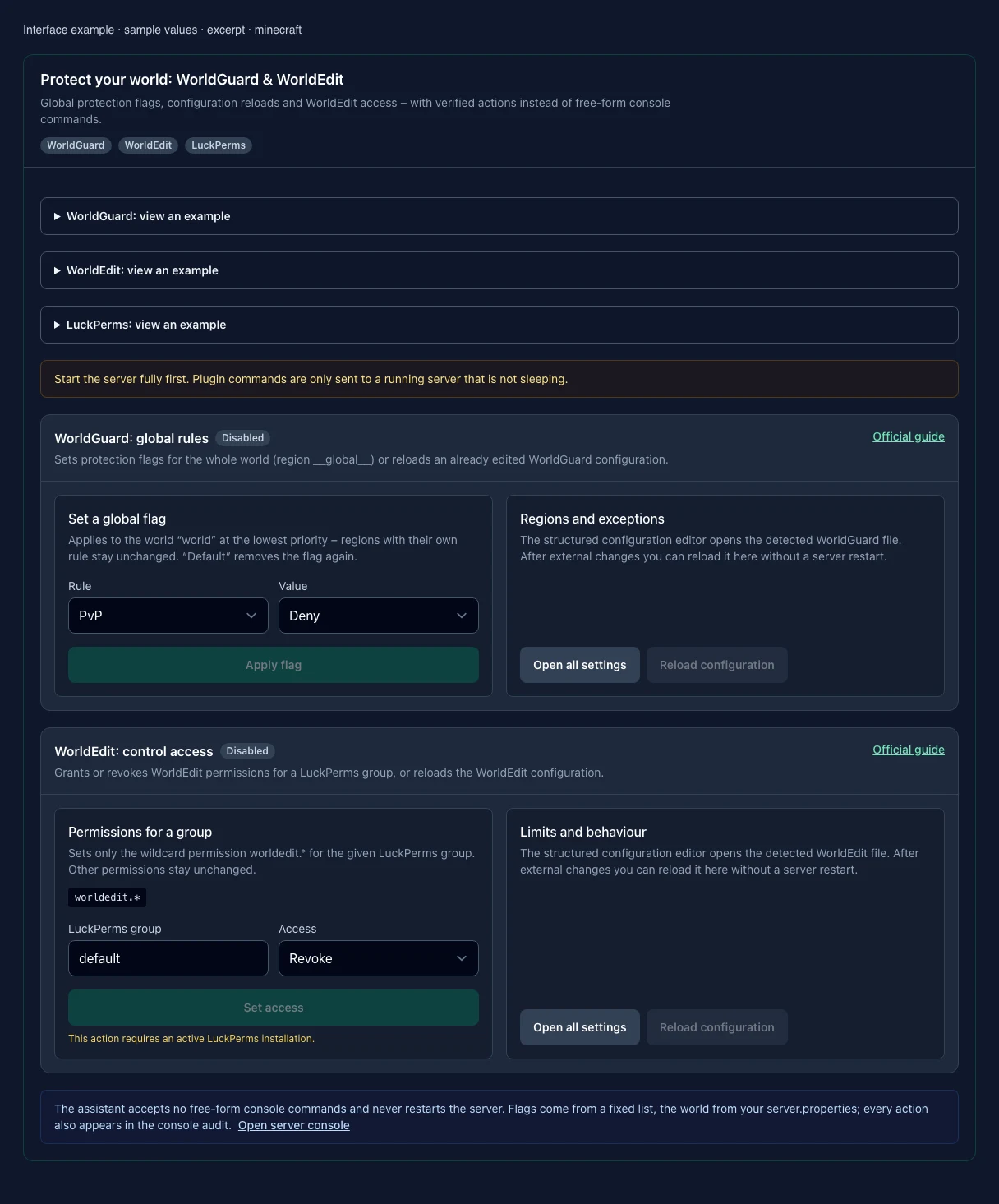
Excerpt of the current interface with sample values. Values and prerequisites illustrate the controls; available tools depend on server software, plugins and permissions. · Captured on 2026-10-08
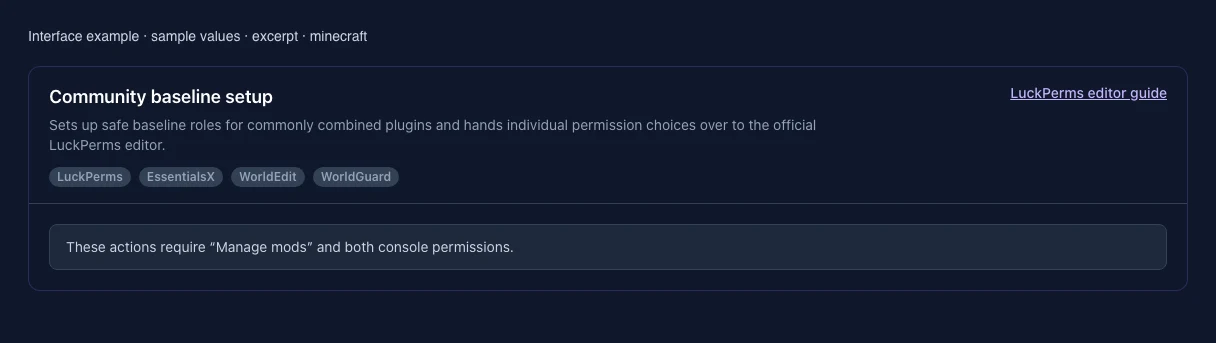
Excerpt of the current interface with sample values. Values and prerequisites illustrate the controls; available tools depend on server software, plugins and permissions. · Captured on 2026-10-08
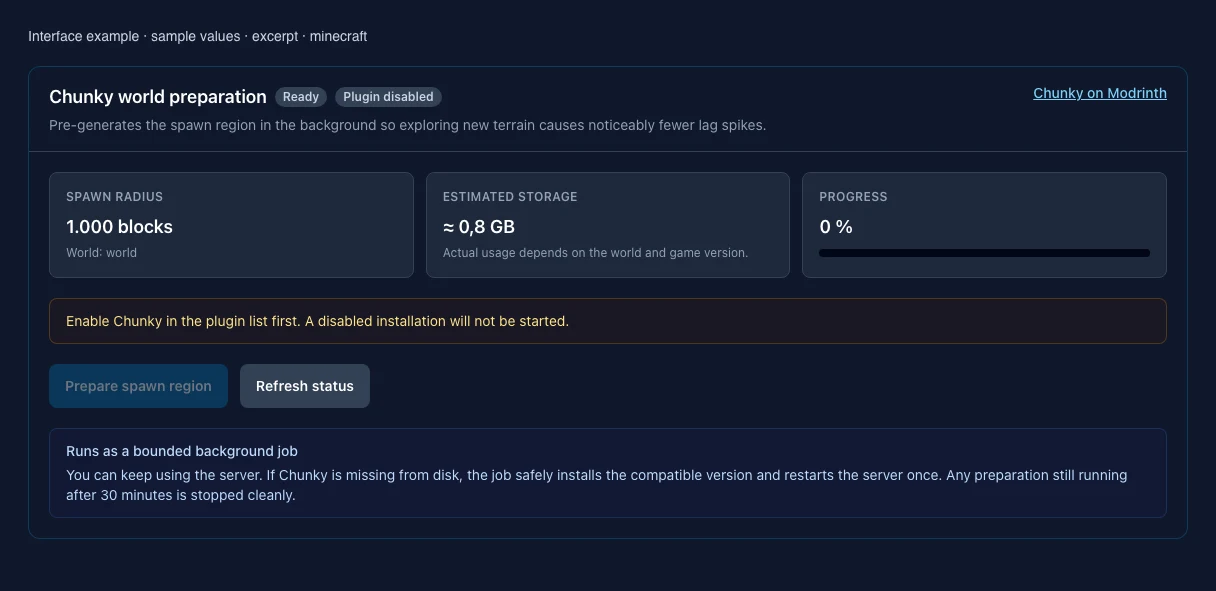
Excerpt of the current interface with sample values. Values and prerequisites illustrate the controls; available tools depend on server software, plugins and permissions. · Captured on 2026-10-08
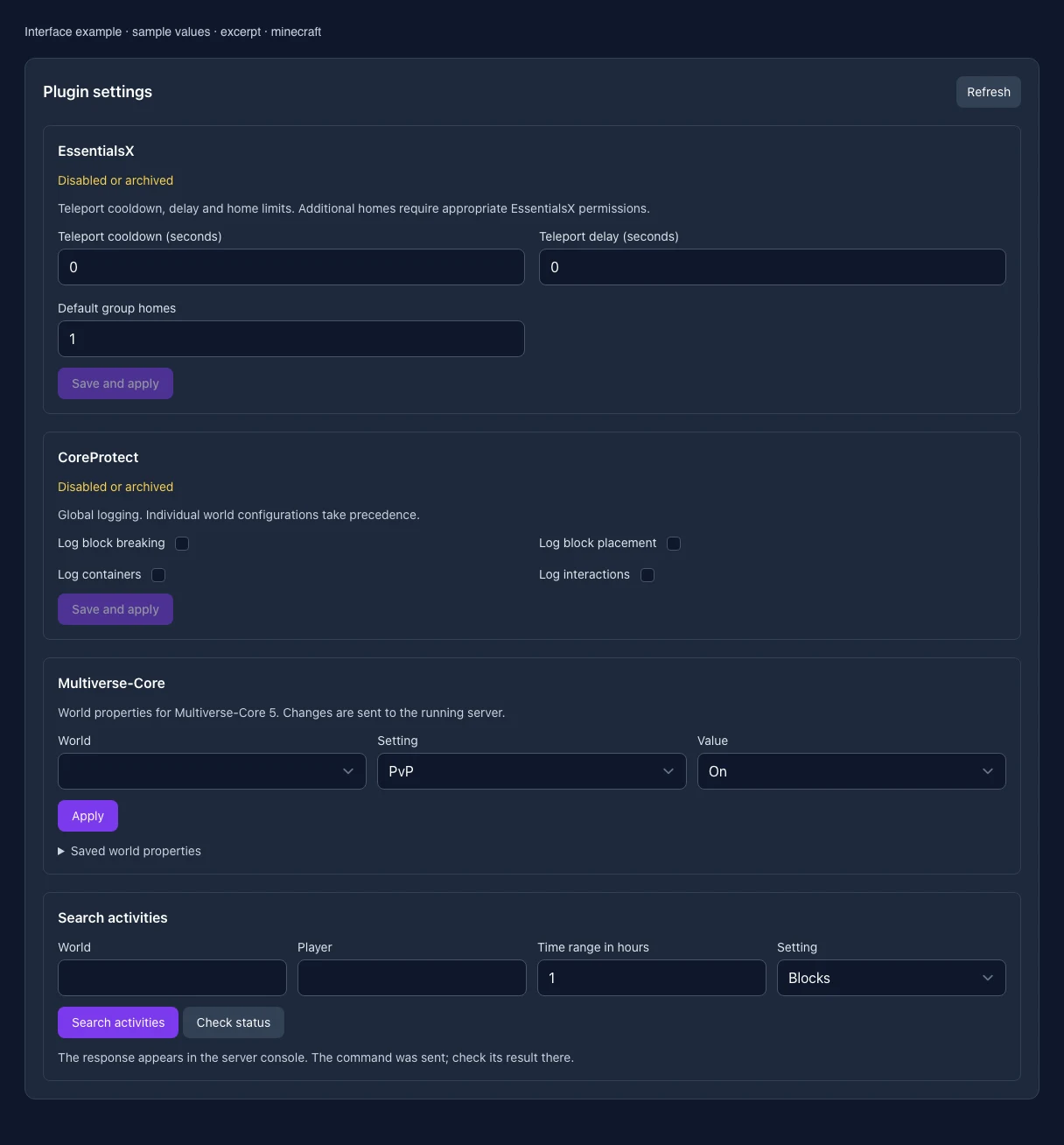
Excerpt of the current interface with sample values. Values and prerequisites illustrate the controls; available tools depend on server software, plugins and permissions. · Captured on 2026-10-08
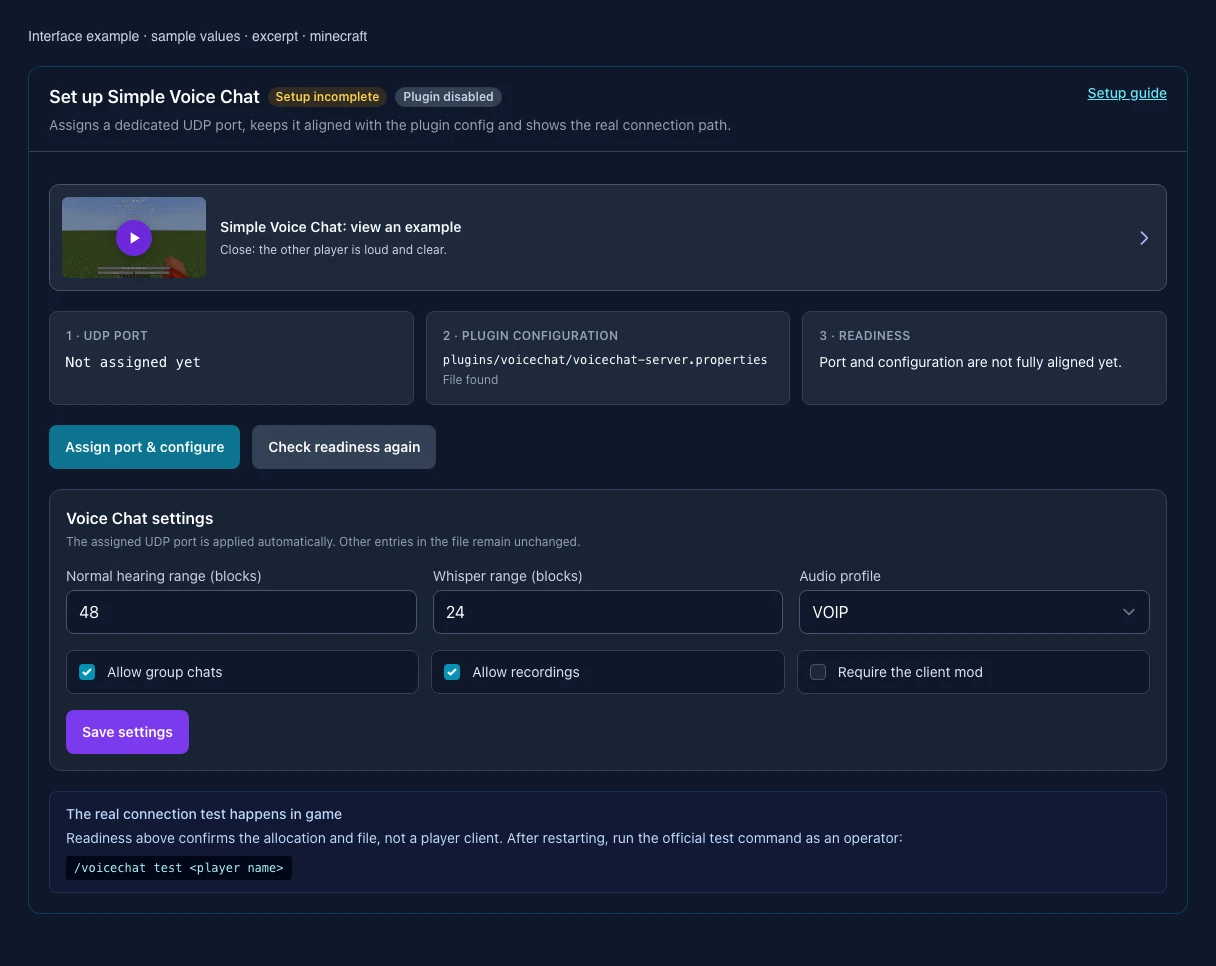
Excerpt of the current interface with sample values. Values and prerequisites illustrate the controls; available tools depend on server software, plugins and permissions. · Captured on 2026-10-08
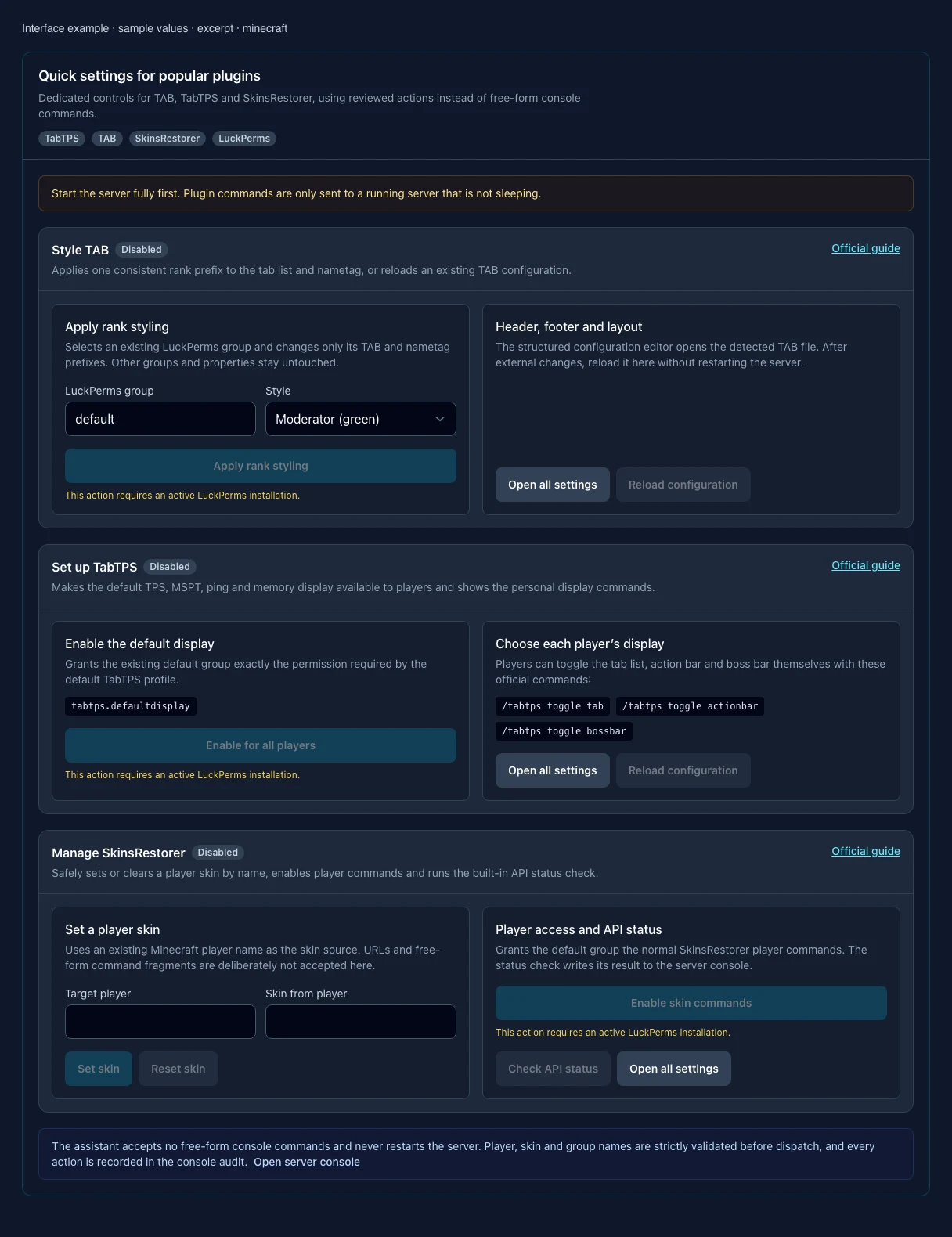
Excerpt of the current interface with sample values. Values and prerequisites illustrate the controls; available tools depend on server software, plugins and permissions. · Captured on 2026-10-08
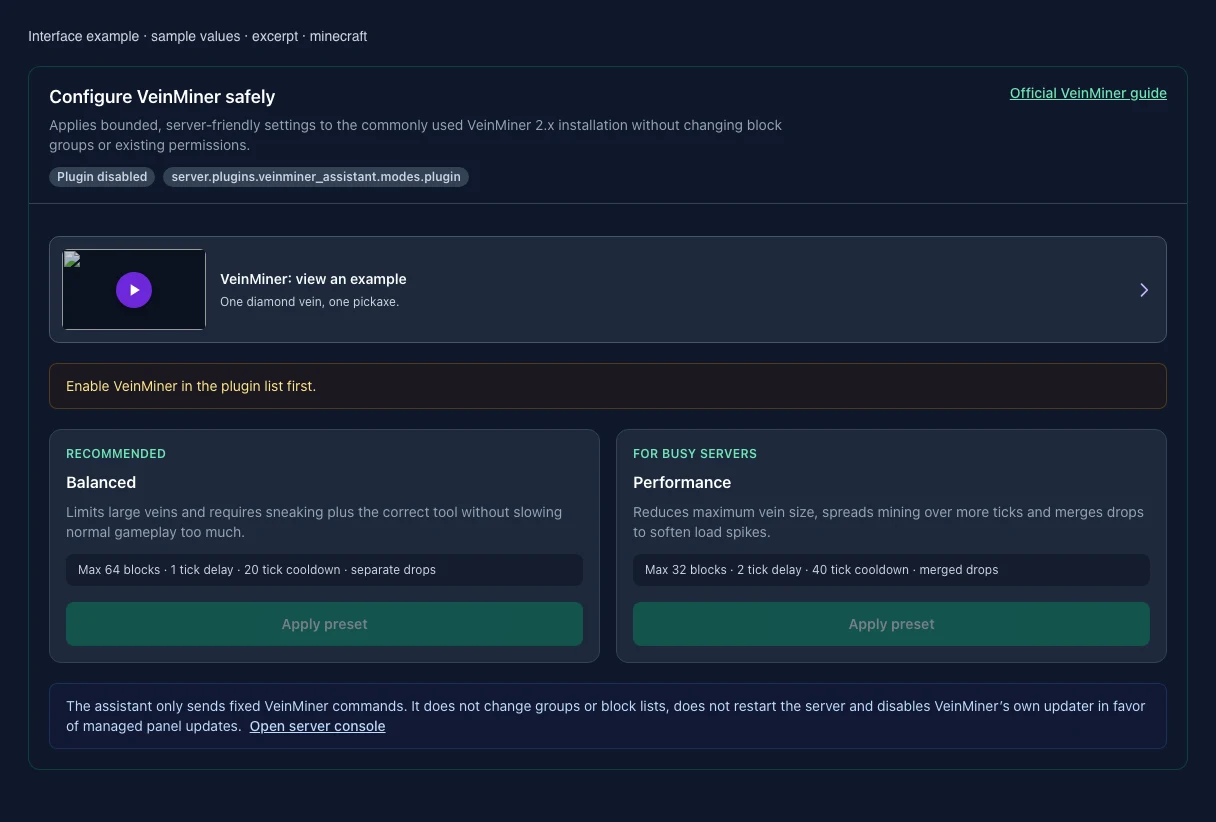
Excerpt of the current interface with sample values. Values and prerequisites illustrate the controls; available tools depend on server software, plugins and permissions. · Captured on 2026-10-08
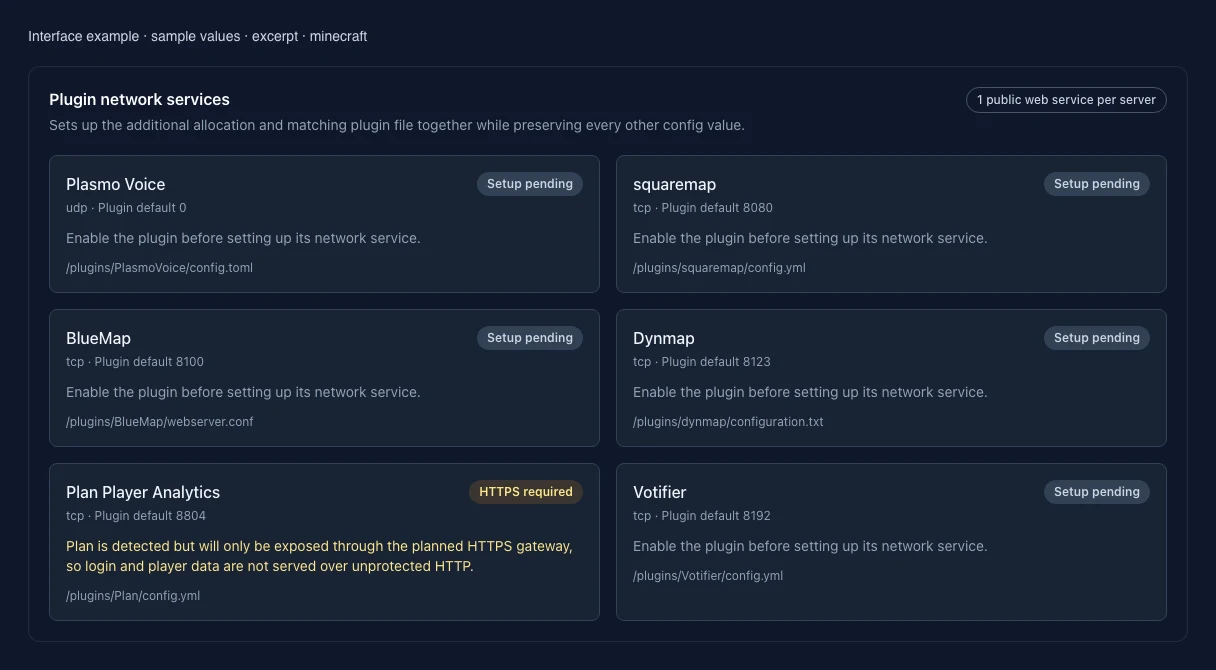
Excerpt of the current interface with sample values. Values and prerequisites illustrate the controls; available tools depend on server software, plugins and permissions. · Captured on 2026-10-08
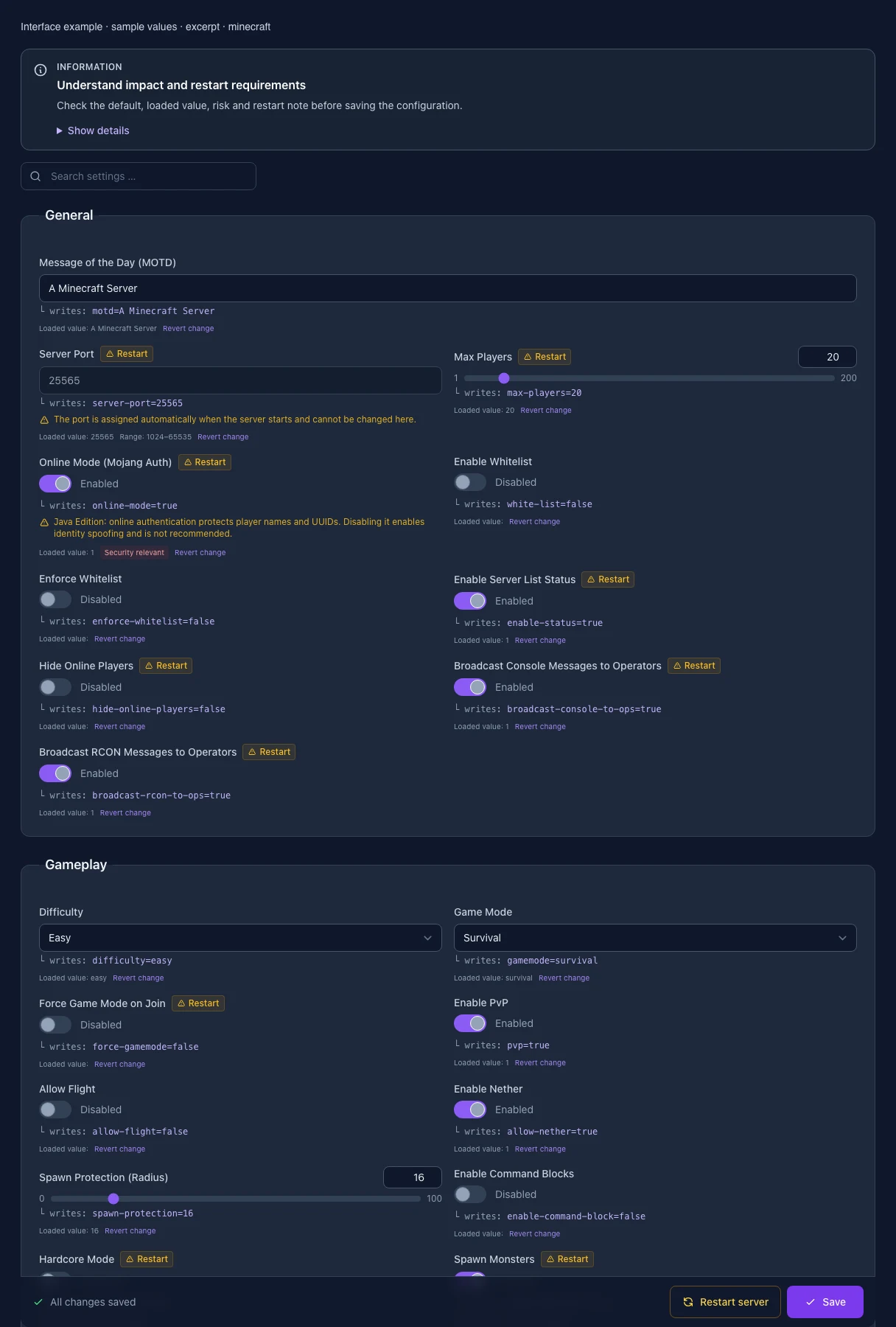
Excerpt of the current interface with sample values. Values and prerequisites illustrate the controls; available tools depend on server software, plugins and permissions. · Captured on 2026-10-08
Minecraft Java Edition: updates, settings and interface
The update history for Minecraft Java Edition has 760 entries, last updated on November 2, 2026. Each entry shows its type, date and origin.
Prices and features: Minecraft Java Edition Server Hosting
Recorded, available and installed are different states. Your actual installation status and suitable updates are shown in the server panel.
114 changes that affect all games (latest on November 1, 2026) are listed in the overview. View changes for all games
Notes on these entries
The guided tools were revised in the shared panel code. The entry concerns the interface or its processing. The date records the change; availability on an individual server depends on the game, software, plugins and permissions.
Plugin version with publisher-declared game versions and loaders. These declarations do not replace an independent compatibility test.
The editor describes new or changed values. The field comparison shows the original defaults, constraints and explanations before and after this documented change.
Interface
Change documented
Minecraft Java: game tools: revised
Interface
Change documented
Minecraft Java: game tools: revised
Interface
Change documented
Minecraft Java: game tools: revised
Interface
Change documented
Minecraft Java: game tools: revised
Interface
Change documented
Minecraft Java: game tools: revised
Interface
Change documented
Minecraft Java: game tools: revised
Plugin release
Published by the developer
Pyrellium 0.3.3-1.21.11
Release channel: release
Declared game versions: 1.21.11
Supported server software: fabric
Plugin release
Published by the developer
Pyrellium 0.3.3-1.21.1
Release channel: release
Declared game versions: 1.21.1
Supported server software: fabric
Setting
Change documented
Minecraft: editor settings changed
Changed settings (1)
- World Name: Changed
level-nameBefore
- Setting
- level-name
- Default
- world
- When it takes effect
- Takes effect after saving and restarting the server.
After
- Setting
- level-name
- Default
- world
- When it takes effect
- Takes effect after saving and restarting the server.
Interface
Change documented
Minecraft Java: game tools: revised
Interface
Change documented
Minecraft Java: game tools: revised
Interface
Change documented
Minecraft Java: game tools: revised
Interface
Change documented
Minecraft Java: game tools: revised
Interface
Change documented
Minecraft Java: game tools: revised
Setting
Change documented
Minecraft: editor settings changed
Changed settings (20)
- Allow Flight: Changed
allow-flightBefore
- Setting
- allow-flight
- Default
- false
- When it takes effect
- Follow the editor’s activation instructions when saving.
After
- Setting
- allow-flight
- Default
- false
- When it takes effect
- Follow the editor’s activation instructions when saving.
- Enable Nether: Changed
allow-netherBefore
- Setting
- allow-nether
- Default
- true
- When it takes effect
- Follow the editor’s activation instructions when saving.
After
- Setting
- allow-nether
- Default
- true
- When it takes effect
- Follow the editor’s activation instructions when saving.
- Difficulty: Changed
difficultyBefore
- Setting
- difficulty
- Default
- easy
- Range / options
- peaceful, easy, normal, hard
- When it takes effect
- Follow the editor’s activation instructions when saving.
After
- Setting
- difficulty
- Default
- easy
- Range / options
- peaceful, easy, normal, hard
- When it takes effect
- Follow the editor’s activation instructions when saving.
- Enable Command Blocks: Changed
enable-command-blockBefore
- Setting
- enable-command-block
- Default
- false
- When it takes effect
- Follow the editor’s activation instructions when saving.
After
- Setting
- enable-command-block
- Default
- false
- When it takes effect
- Follow the editor’s activation instructions when saving.
- Enforce Whitelist: Changed
enforce-whitelistBefore
- Setting
- enforce-whitelist
- Default
- false
- When it takes effect
- Follow the editor’s activation instructions when saving.
After
- Setting
- enforce-whitelist
- Default
- false
- When it takes effect
- Follow the editor’s activation instructions when saving.
- Game Mode: Changed
gamemodeBefore
- Setting
- gamemode
- Default
- survival
- Range / options
- survival, creative, adventure, spectator
- When it takes effect
- Follow the editor’s activation instructions when saving.
After
- Setting
- gamemode
- Default
- survival
- Range / options
- survival, creative, adventure, spectator
- When it takes effect
- Follow the editor’s activation instructions when saving.
- Hardcore Mode: Changed
hardcoreBefore
- Setting
- hardcore
- Default
- false
- When it takes effect
- Takes effect after saving and restarting the server.
After
- Setting
- hardcore
- Default
- false
- When it takes effect
- Takes effect after saving and restarting the server.
- World Name: Changed
level-nameBefore
- Setting
- level-name
- Default
- world
- When it takes effect
- Takes effect after saving and restarting the server.
After
- Setting
- level-name
- Default
- world
- When it takes effect
- Takes effect after saving and restarting the server.
- World Seed: Changed
level-seedBefore
- Setting
- level-seed
- Default
- When it takes effect
- Takes effect after saving and restarting the server.
After
- Setting
- level-seed
- Default
- When it takes effect
- Takes effect after saving and restarting the server.
- World Type: Changed
level-typeBefore
- Setting
- level-type
- Default
- normal
- Range / options
- normal, flat, largeBiomes, amplified
- When it takes effect
- Takes effect after saving and restarting the server.
After
- Setting
- level-type
- Default
- normal
- Range / options
- normal, flat, largeBiomes, amplified
- When it takes effect
- Takes effect after saving and restarting the server.
- Max Players: Changed
max-playersBefore
- Setting
- max-players
- Default
- 20
- Range / options
- 1 – 200
- When it takes effect
- Takes effect after saving and restarting the server.
After
- Setting
- max-players
- Default
- 20
- Range / options
- 1 – 200
- When it takes effect
- Takes effect after saving and restarting the server.
- Max. World Size: Changed
max-world-sizeBefore
- Setting
- max-world-size
- Default
- 29999984
- Range / options
- 1 – 29999984
- When it takes effect
- Follow the editor’s activation instructions when saving.
After
- Setting
- max-world-size
- Default
- 29999984
- Range / options
- 1 – 29999984
- When it takes effect
- Follow the editor’s activation instructions when saving.
- Message of the Day (MOTD): Changed
motdBefore
- Setting
- motd
- Default
- A Minecraft Server
- When it takes effect
- Follow the editor’s activation instructions when saving.
After
- Setting
- motd
- Default
- A Minecraft Server
- When it takes effect
- Follow the editor’s activation instructions when saving.
- Online Mode (Mojang Auth): Changed
online-modeBefore
- Setting
- online-mode
- Default
- true
- When it takes effect
- Takes effect after saving and restarting the server.
After
- Setting
- online-mode
- Default
- true
- When it takes effect
- Takes effect after saving and restarting the server.
- AFK Timeout (Minutes): Changed
player-idle-timeoutBefore
- Setting
- player-idle-timeout
- Default
- 0
- Range / options
- 0 – 999
- When it takes effect
- Follow the editor’s activation instructions when saving.
After
- Setting
- player-idle-timeout
- Default
- 0
- Range / options
- 0 – 999
- When it takes effect
- Follow the editor’s activation instructions when saving.
- Enable PvP: Changed
pvpBefore
- Setting
- pvp
- Default
- true
- When it takes effect
- Follow the editor’s activation instructions when saving.
After
- Setting
- pvp
- Default
- true
- When it takes effect
- Follow the editor’s activation instructions when saving.
- Simulation Distance: Changed
simulation-distanceBefore
- Setting
- simulation-distance
- Default
- 10
- Range / options
- 2 – 32
- When it takes effect
- Follow the editor’s activation instructions when saving.
After
- Setting
- simulation-distance
- Default
- 10
- Range / options
- 2 – 32
- When it takes effect
- Follow the editor’s activation instructions when saving.
- Spawn Protection (Radius): Changed
spawn-protectionBefore
- Setting
- spawn-protection
- Default
- 16
- Range / options
- 0 – 100
- When it takes effect
- Follow the editor’s activation instructions when saving.
After
- Setting
- spawn-protection
- Default
- 16
- Range / options
- 0 – 100
- When it takes effect
- Follow the editor’s activation instructions when saving.
- View Distance: Changed
view-distanceBefore
- Setting
- view-distance
- Default
- 10
- Range / options
- 2 – 32
- When it takes effect
- Follow the editor’s activation instructions when saving.
After
- Setting
- view-distance
- Default
- 10
- Range / options
- 2 – 32
- When it takes effect
- Follow the editor’s activation instructions when saving.
- Enable Whitelist: Changed
white-listBefore
- Setting
- white-list
- Default
- false
- When it takes effect
- Follow the editor’s activation instructions when saving.
After
- Setting
- white-list
- Default
- false
- When it takes effect
- Follow the editor’s activation instructions when saving.
Interface
Change documented
Minecraft Java: game tools: revised
Interface
Change documented
Minecraft Java: game tools: revised
Interface
Change documented
Minecraft Java: game tools: revised
Interface
Change documented
Minecraft Java: game tools: revised
What the interface looks like
The image shows the interface on its capture date; earlier versions may differ.
What the settings do
These values come from our guided editors. Defaults are the editor starting values; they do not show the contents of a customer server.
Message of the Day (MOTD)
- Setting
- motd
- Default
- A Minecraft Server
- When it takes effect
- Takes effect after saving and restarting the server.
Server Port
The port is assigned automatically when the server starts and cannot be changed here.
- Setting
- server-port
- Default
- 25565
- Range / options
- 1024 – 65535
- When it takes effect
- Takes effect after saving and restarting the server.
Max Players
- Setting
- max-players
- Default
- 20
- Range / options
- 1 – 200
- When it takes effect
- Takes effect after saving and restarting the server.
Online Mode (Mojang Auth)
Java Edition: online authentication protects player names and UUIDs. Disabling it enables identity spoofing and is not recommended.
- Setting
- online-mode
- Default
- true
- When it takes effect
- Takes effect after saving and restarting the server.
Enable Whitelist
- Setting
- white-list
- Default
- false
- When it takes effect
- Takes effect after saving and restarting the server.
Enforce Whitelist
- Setting
- enforce-whitelist
- Default
- false
- When it takes effect
- Takes effect after saving and restarting the server.
Enable Server List Status
- Setting
- enable-status
- Default
- true
- When it takes effect
- Takes effect after saving and restarting the server.
Hide Online Players
- Setting
- hide-online-players
- Default
- false
- When it takes effect
- Takes effect after saving and restarting the server.
Broadcast Console Messages to Operators
- Setting
- broadcast-console-to-ops
- Default
- true
- When it takes effect
- Takes effect after saving and restarting the server.
Difficulty
- Setting
- difficulty
- Default
- easy
- Range / options
- peaceful, easy, normal, hard
- When it takes effect
- Takes effect after saving and restarting the server.
Game Mode
- Setting
- gamemode
- Default
- survival
- Range / options
- survival, creative, adventure, spectator
- When it takes effect
- Takes effect after saving and restarting the server.
Force Game Mode on Join
- Setting
- force-gamemode
- Default
- false
- When it takes effect
- Takes effect after saving and restarting the server.
Enable PvP
- Setting
- pvp
- Default
- true
- When it takes effect
- Takes effect after saving and restarting the server.
- When it takes effect
- Since Minecraft 1.21.9, this setting is no longer read from server.properties.
Use this gamerule instead:
pvp
Allow Flight
- Setting
- allow-flight
- Default
- false
- When it takes effect
- Takes effect after saving and restarting the server.
Enable Nether
- Setting
- allow-nether
- Default
- true
- When it takes effect
- Takes effect after saving and restarting the server.
- When it takes effect
- Since Minecraft 1.21.9, this setting is no longer read from server.properties.
Use this gamerule instead:
allowEnteringNetherUsingPortals
Spawn Protection (Radius)
- Setting
- spawn-protection
- Default
- 16
- Range / options
- 0 – 100
- When it takes effect
- Takes effect after saving and restarting the server.
Enable Command Blocks
- Setting
- enable-command-block
- Default
- false
- When it takes effect
- Takes effect after saving and restarting the server.
- When it takes effect
- Since Minecraft 1.21.9, this setting is no longer read from server.properties.
Use this gamerule instead:
commandBlocksEnabled
Hardcore Mode
- Setting
- hardcore
- Default
- false
- When it takes effect
- Takes effect after saving and restarting the server.
Spawn Monsters
- Setting
- spawn-monsters
- Default
- true
- When it takes effect
- Takes effect after saving and restarting the server.
- When it takes effect
- Since Minecraft 1.21.9, this setting is no longer read from server.properties.
Use this gamerule instead:
spawnMonsters
Spawn Animals
- Setting
- spawn-animals
- Default
- true
- When it takes effect
- Takes effect after saving and restarting the server.
- When it takes effect
- Since Minecraft 1.21.2, this setting is no longer read from server.properties.
Spawn NPCs
- Setting
- spawn-npcs
- Default
- true
- When it takes effect
- Takes effect after saving and restarting the server.
- When it takes effect
- Since Minecraft 1.21.2, this setting is no longer read from server.properties.
World Name
Determines which world folder is loaded. A new name loads a different (possibly empty) world — your existing world is not deleted and returns once you re-enter the old name and restart.
- Setting
- level-name
- Default
- world
- When it takes effect
- Takes effect after saving and restarting the server.
World Seed
- Setting
- level-seed
- Default
- When it takes effect
- Takes effect after saving and restarting the server.
World Type
- Setting
- level-type
- Default
- normal
- Range / options
- normal, flat, largeBiomes, amplified
- When it takes effect
- Takes effect after saving and restarting the server.
Generate Structures
- Setting
- generate-structures
- Default
- true
- When it takes effect
- Takes effect after saving and restarting the server.
Max. World Size
- Setting
- max-world-size
- Default
- 29999984
- Range / options
- 1 – 29999984
- When it takes effect
- Takes effect after saving and restarting the server.
View Distance
Java view distance in chunks. High values increase network, memory and CPU load.
- Setting
- view-distance
- Default
- 10
- Range / options
- 2 – 32
- When it takes effect
- Takes effect after saving and restarting the server.
Simulation Distance
Java simulation distance for ticks, mobs and redstone. It is not Bedrock tick distance; high values increase CPU load.
- Setting
- simulation-distance
- Default
- 10
- Range / options
- 2 – 32
- When it takes effect
- Takes effect after saving and restarting the server.
AFK Timeout (Minutes)
- Setting
- player-idle-timeout
- Default
- 0
- Range / options
- 0 – 999
- When it takes effect
- Takes effect after saving and restarting the server.
Entity Broadcast Range (%)
- Setting
- entity-broadcast-range-percentage
- Default
- 100
- Range / options
- 10 – 1000
- When it takes effect
- Takes effect after saving and restarting the server.
Compression Threshold (Bytes)
- Setting
- network-compression-threshold
- Default
- 256
- Range / options
- -1 – 65535
- When it takes effect
- Takes effect after saving and restarting the server.
Require Resource Pack
- Setting
- require-resource-pack
- Default
- false
- When it takes effect
- Takes effect after saving and restarting the server.
Resource Pack URL
- Setting
- resource-pack
- Default
- When it takes effect
- Takes effect after saving and restarting the server.
Resource Pack SHA-1
- Setting
- resource-pack-sha1
- Default
- When it takes effect
- Takes effect after saving and restarting the server.
Minecraft version
Minecraft version installed on the server.
- Setting
- MINECRAFT_VERSION
- Default
- latest
- When it takes effect
- Takes effect after saving and restarting the server.
Server JAR file
Name of the JAR file the server starts with.
- Setting
- SERVER_JARFILE
- Default
- server.jar
- When it takes effect
- Takes effect after saving and restarting the server.
Build number
Build of the server software for the selected Minecraft version. "latest" or an empty field means the newest build.
- Setting
- BUILD_NUMBER
- Default
- latest
- When it takes effect
- Takes effect after saving and restarting the server.